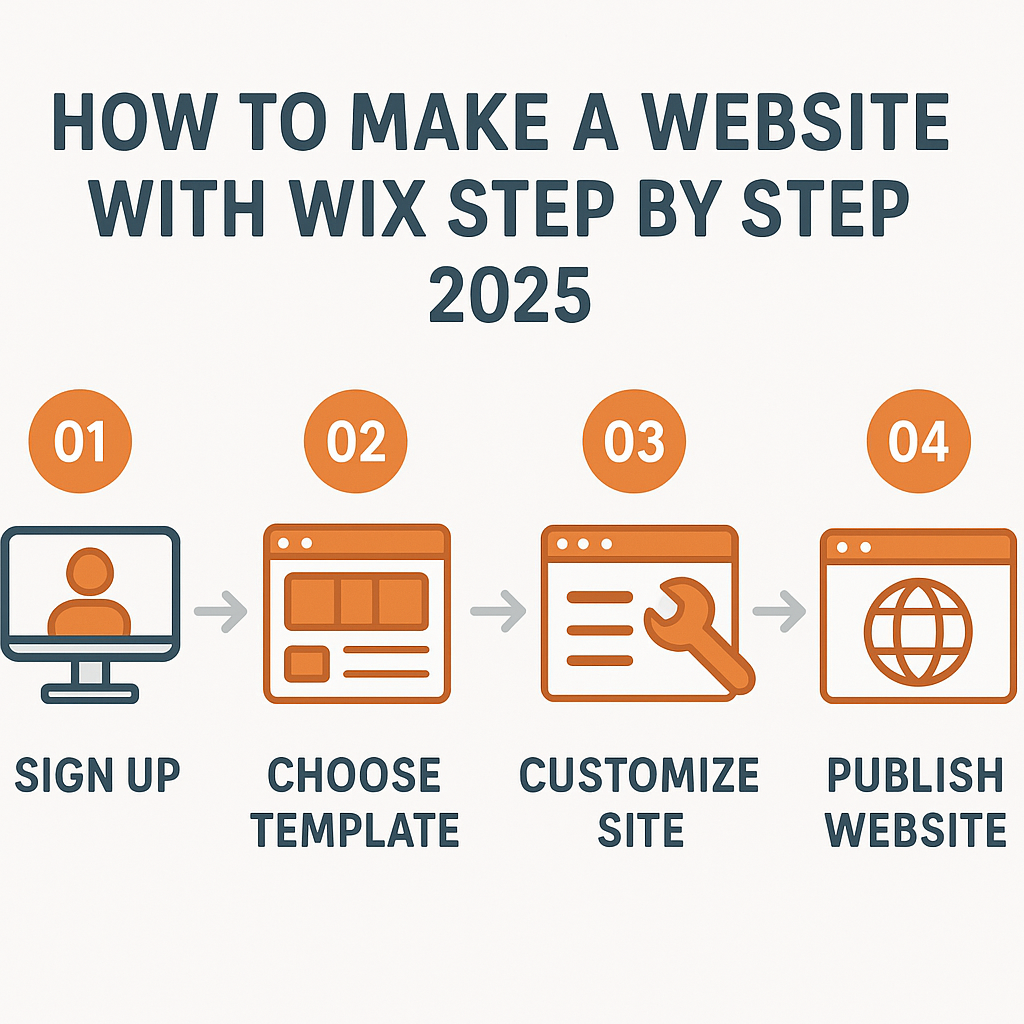
How to Make a Website with Wix Step by Step 2025
If you have ever searched for how to make a website with Wix step by step 2025, you are in exactly the right place. Building a website used to require knowing how to write code, hire a developer, or spend weeks learning complex software. Wix has changed that reality significantly. Today, anyone with a computer and an internet connection can build a fully functional, professional-looking website without writing a single line of code. Whether you are a small business owner trying to establish an online presence, a photographer wanting to showcase your portfolio, a teacher creating a resource hub, or simply someone with an idea worth sharing with the world, Wix gives you the tools to make it happen. In 2025, Wix has continued to evolve its platform with smarter artificial intelligence tools, more flexible design options, and improved performance for mobile devices. This guide will walk you through every meaningful step of the process — from creating your account to publishing your finished site — with enough detail that you will feel genuinely confident at each stage. No technical background is required.
—
What Is Wix and How Does It Work?
Wix is a cloud-based website builder — a platform that lives entirely online and allows you to create, edit, and publish websites through a drag-and-drop visual interface. Think of it like digital furniture assembly. Instead of cutting wood or welding metal yourself, you are given pre-made pieces that you can arrange, resize, recolour, and personalise without needing to understand how they were manufactured. The platform handles all the technical infrastructure for you, including web hosting (where your site’s files are stored), security certificates (the HTTPS that tells visitors your site is safe), and software updates.
Here is how it works at a fundamental level: when you build a site on Wix, you are working inside a visual editor that shows you a live preview of your website. Every change you make — moving a photo, changing a font, adding a contact form — is reflected immediately in front of you. Under the hood, Wix is translating all of your visual decisions into real website code, but you never see or touch that code unless you specifically choose to. This is called a WYSIWYG editor, which stands for “What You See Is What You Get.”
A real-world example: imagine a local bakery owner named Maria who has no technical skills but wants customers to find her online, see her menu, and place orders for custom cakes. Using Wix, Maria can pick a bakery-themed template, swap in her own photos, write her menu text, and add a contact form — all within an afternoon. Her site is then live on the internet, viewable by anyone in the world. That is the practical power of what Wix offers.
—
Setting Up Your Wix Account and Choosing the Right Starting Point
The first practical step in making a Wix website is creating your account. Navigate to wix.com and click the “Get Started” button. You will be asked to sign up using an email address and password, or you can register using a Google or Facebook account for convenience. This process takes under two minutes.
Once you are logged in, Wix will ask you a foundational question: do you want to use Wix ADI (Artificial Design Intelligence) or the Wix Editor? This choice is more important than it might seem, so it deserves a clear explanation.
Wix ADI is an automated tool. It asks you a series of questions — what kind of website you are building, what features you need, what style you prefer — and then generates a complete website for you in minutes. It is excellent for someone who wants a fast starting point or feels overwhelmed by blank-page syndrome. However, the resulting design is harder to heavily customise after the fact.
Wix Editor gives you full manual control over a template. You select a pre-designed template from Wix’s library (which contains over 800 options organised by category such as business, portfolio, blog, restaurant, and more), and then you customise every element yourself. This approach takes longer but gives you more creative freedom.
For most beginners who want a site that genuinely reflects their brand, the recommended path in 2025 is to start with Wix Editor using a template that is close to your vision. For example, if you are building a photography portfolio, search the template library for “photography” and choose one whose layout and mood align with your aesthetic. You will change almost everything anyway, but starting with the right structural layout saves significant time.
—
Customising Your Website Design and Content
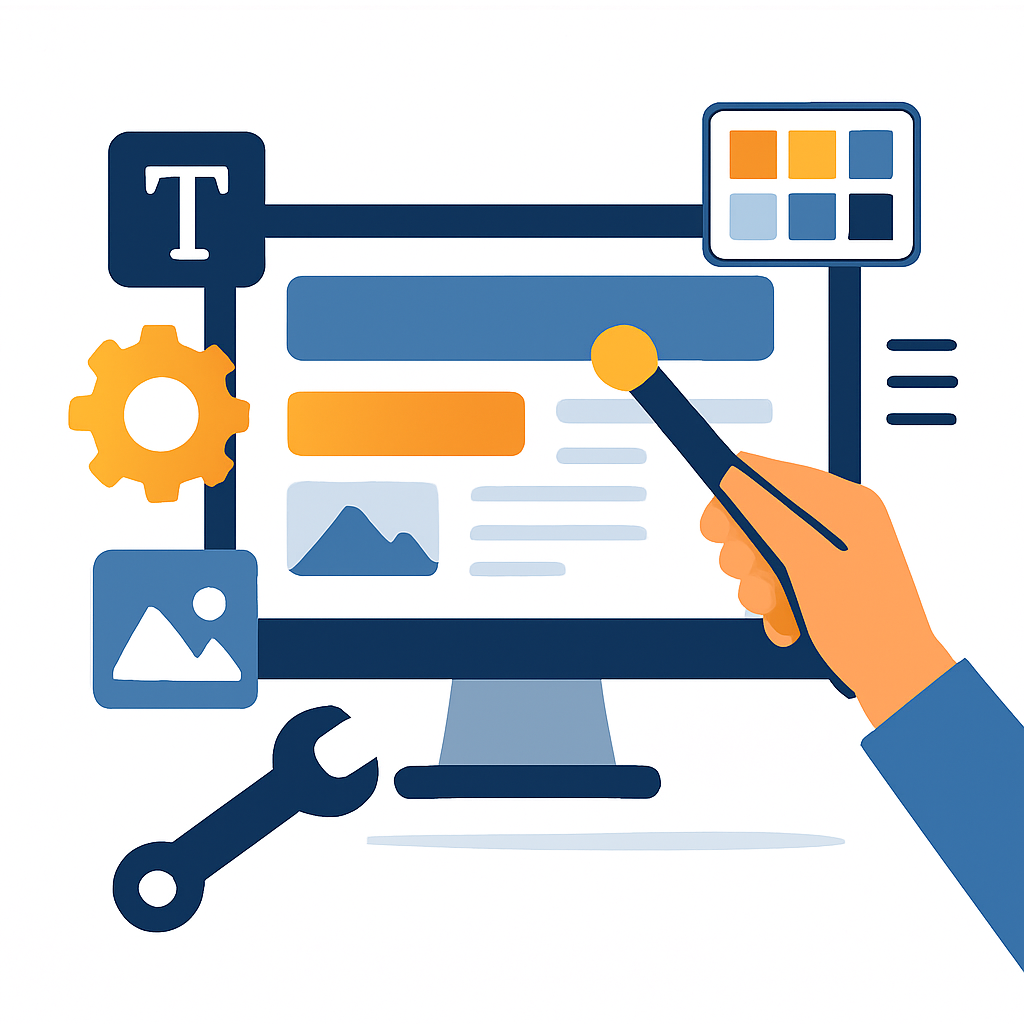
Once you have chosen your template and opened it in the Wix Editor, you are looking at a live canvas that represents your website. This is where most of your creative work happens, and understanding how the editor is organised will help you move through it efficiently.
The left-hand panel contains your primary tools: adding new elements (text, images, buttons, forms, videos, and more), managing your site’s pages, and accessing your media library. The top toolbar gives you options for saving, previewing, and publishing your site.
Editing text is as simple as double-clicking any text block on the canvas. A text editing toolbar appears, and you can change the words, font, size, colour, and alignment — much like editing a document in a word processor. Every template uses placeholder text, so your first task is replacing all of it with your own words.
Replacing images follows a similarly intuitive process. Click any image on the canvas, and an “Change Image” button appears. You can upload photos from your computer, use images from Wix’s built-in free media library (which contains millions of stock photos), or paste a URL. For example, if you are building a personal trainer’s website, you might upload your own workout photos for the hero banner and use stock images from Wix’s library for background sections.
Layout adjustments are made by clicking and dragging elements around the canvas. You can resize elements by pulling their corner handles. The editor will display alignment guides (blue lines) to help you position elements precisely relative to each other.
One critically important area to address early is your mobile view. In 2025, more than half of all web traffic comes from smartphones. Wix has a separate mobile editor you can switch to by clicking the mobile icon at the top of the editor. Your desktop design does not automatically translate perfectly to mobile — you may need to reposition or resize elements specifically for smaller screens. Spending 20–30 minutes optimising your mobile layout is time very well invested.
—
Adding Pages, Navigation, and Key Website Features
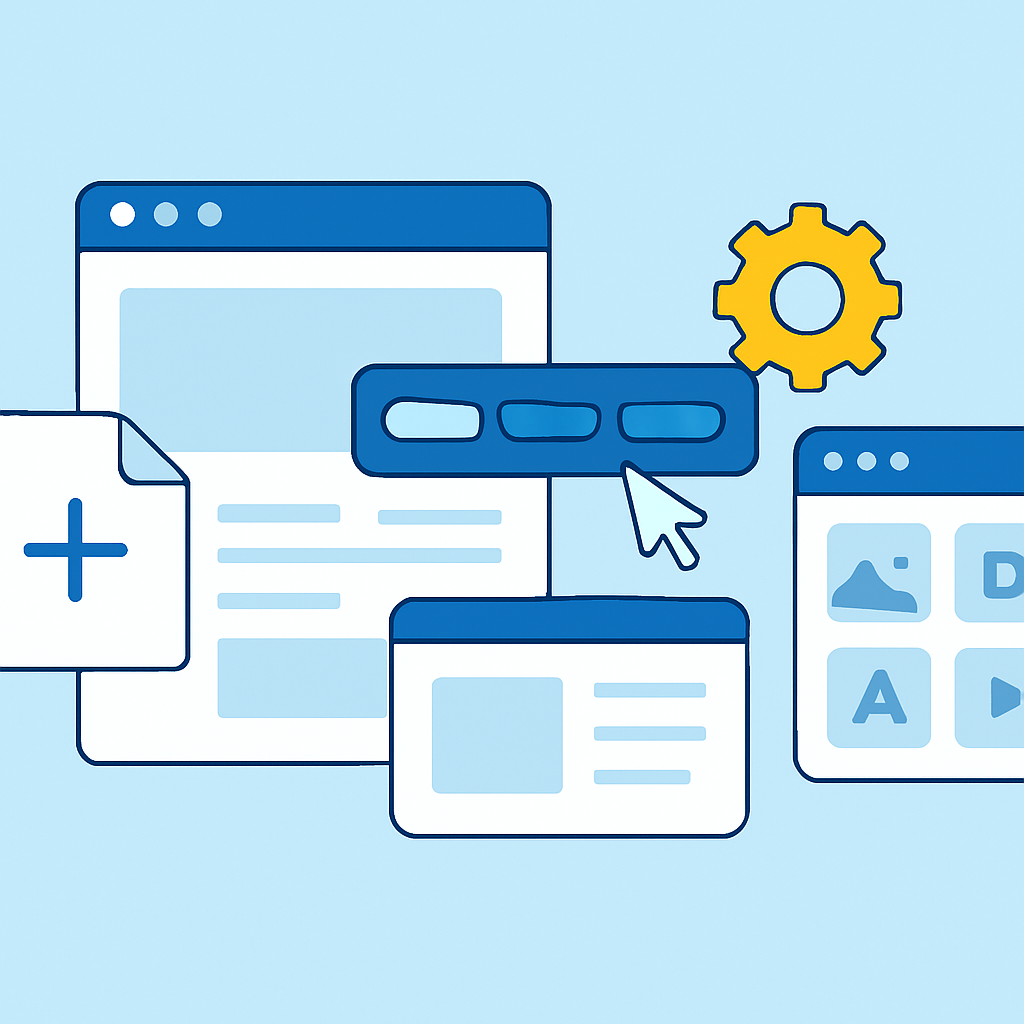
A single-page website might work for the simplest use cases, but most websites need multiple pages — an About page, a Contact page, a Services or Portfolio page, and so on. In the Wix Editor, you manage your pages through the Pages panel on the left sidebar.
Click “Add Page” to create a new blank page or choose from page templates. Give each page a clear, descriptive name because those names automatically populate your site’s navigation menu. Your navigation menu is what visitors use to move between your pages, so clear naming matters enormously for user experience.
Essential pages for most websites include:
- Home — your first impression and overview
- About — who you are and your story or mission
- Services or Portfolio — what you offer or showcase
- Contact — how people can reach you
Adding a contact form is a particularly valuable feature. In the Wix Editor, click “Add Elements” in the left panel, navigate to “Contact & Forms,” and drag a form element onto your contact page. You can customise the form fields (name, email, message, phone number, etc.) and configure where form submissions are sent — typically to your email address. This is how visitors can reach you directly from your site without needing to know your email address in advance.
For websites that need a blog, an online store, or a booking system, Wix offers dedicated apps through the Wix App Market. For instance, a yoga studio owner could add the Wix Bookings app to allow students to schedule classes directly through the website. These apps integrate directly into your site and are managed through the same editor interface.
—
Publishing Your Website and Understanding Domain Names
When your site looks the way you want it to, the next step is publishing it so the world can see it. In Wix, click the blue “Publish” button in the top right corner of the editor. Wix will prompt you to choose between your free Wix subdomain or connecting a custom domain.
The free subdomain looks something like this: yourusername.wixsite.com/yoursite. It is fully functional and available immediately at no cost. For personal projects, hobby sites, or if you are still exploring, this is a perfectly acceptable starting point.
A custom domain looks like www.yourbusiness.com. A custom domain appears more professional, is easier for people to remember, and is better for search engine optimisation. You can register a new domain through Wix directly or connect a domain you have already registered elsewhere through a domain registrar. Domain names typically cost between $10 and $20 per year.
Before publishing, take time to complete your SEO basics. In Wix, each page has an SEO panel accessible through the editor where you can set the page title and meta description — the text that appears in Google search results. For example, if you are building a plumbing business website in Austin, Texas, your home page title might be “Reliable Plumbing Services in Austin, TX | Your Business Name.” These small details meaningfully affect whether people find your site through search engines.
After publishing, Wix provides a dashboard where you can monitor your site’s performance, manage any apps you have installed, and make ongoing edits. Your site is never truly “finished” — you can return to the editor at any time to update content, add new pages, or refresh the design.
—
Benefits and Limitations of Building a Website with Wix
Understanding what Wix does well — and where it has genuine constraints — helps you set realistic expectations and make informed decisions about your project.
Benefits
- No coding required. Wix’s drag-and-drop interface is genuinely accessible to complete beginners. You do not need any technical background to produce a polished, functional website.
- Speed of creation. A basic website can be built and published in a single day. For someone who needs an online presence quickly, this is a significant advantage over more complex platforms.
- All-in-one infrastructure. Hosting, security, and software maintenance are all handled by Wix. You do not need to manage a server, install updates, or worry about your site going offline due to technical failures on your end.
- Extensive template library. With over 800 professionally designed templates across dozens of industries, most people will find a starting point that fits their vision without starting from scratch.
- Built-in app market. Features like online stores, booking systems, blogs, and membership areas can be added without leaving the Wix ecosystem, keeping your workflow consolidated.
- Responsive mobile editor. The dedicated mobile editor gives you meaningful control over how your site looks on smartphones, which matters enormously for user experience in 2025.
Limitations
- Limited design flexibility compared to coding from scratch. While Wix’s editor is powerful, you cannot do absolutely everything a custom-coded website can do. If you need a highly unique interactive experience or deeply custom functionality, Wix may eventually feel restrictive.
- Templates are not interchangeable after publishing. Once you have built your site on a particular template and published it, switching to a completely different template requires starting your design over. Choosing your template thoughtfully at the beginning matters.
- Performance can vary. Wix sites are generally fast, but heavily image-laden or app-loaded sites can sometimes load more slowly than sites built on optimised custom code. Image compression and limiting unnecessary apps help mitigate this.
- Ongoing costs for premium features. While Wix has a free plan, removing Wix ads, using a custom domain, and accessing features like online stores require a paid subscription plan. These costs are reasonable but worth budgeting for if you have professional goals.
- Content migration is difficult. Moving your Wix website to another platform later is not straightforward. Your content (text, images) can be manually copied, but the design itself does not export to other systems. This is a meaningful long-term consideration.
—
Frequently Asked Questions
Do I need to pay for Wix to build a real website?
No, you can build a complete website using Wix’s free plan at no cost. However, the free plan displays Wix-branded ads on your site and uses a Wix subdomain address rather than a custom domain like www.yourbusiness.com. For personal projects, student portfolios, or exploratory builds, the free plan is entirely workable. If you plan to use your site professionally — for a business, freelance work, or any situation where you want to be taken seriously — upgrading to a paid plan to remove ads and connect your own domain is worth the investment.
How long does it realistically take to build a Wix website from scratch?
For a straightforward five-page website with a home page, about page, services page, gallery, and contact form, most beginners can complete a solid draft in four to eight hours of focused work spread across one or two days. The time varies based on how much original content (text and photos) you have ready in advance, how much you experiment with design choices, and how detailed you want your mobile optimisation to be. Having your written content and images gathered before you open the editor significantly speeds up the process.
Can I use Wix to build an online store?
Yes, Wix includes e-commerce functionality through its Wix Stores app, which you can add to any website through the App Market. With Wix Stores, you can list physical or digital products, set prices, manage inventory, accept payments through methods like credit cards and PayPal, and handle shipping settings. A small ceramics artist, for example, could set up a simple shop selling handmade mugs and bowls entirely within the Wix ecosystem. For very large-scale e-commerce operations with thousands of products and complex inventory needs, dedicated e-commerce platforms may offer more specialised tools, but for small to medium stores, Wix is fully capable.
Will my Wix website show up on Google?
Yes, Wix websites can and do appear in Google search results. However, simply publishing a website does not guarantee immediate visibility — search engine optimisation (SEO) is an ongoing process. Wix provides built-in SEO tools including editable page titles, meta descriptions, and the ability to submit your sitemap to Google Search Console, which helps Google discover and index your pages. Writing genuine, useful content relevant to your topic, using descriptive image file names, and earning links from other websites all contribute to better search visibility over time. Wix also generates clean URL structures and mobile-friendly designs, both of which Google considers in its ranking signals.
What happens to my Wix website if I stop paying for a premium plan?
If you downgrade from a paid Wix plan back to the free plan, your website remains live and accessible, but it reverts to the free plan’s conditions — meaning Wix ads will reappear on your site and your custom domain connection will be deactivated (your content will still be accessible via your Wix subdomain). Your site data, pages, and design are not deleted. This is worth knowing because it means your work is never permanently lost if you need to pause your subscription for any reason. If you simply cancel a domain registration, visitors using that custom domain will no longer find your site, so domain renewals should be tracked carefully.
—
Conclusion
Building a website in 2025 has never been more accessible, and learning how to make a website with Wix step by step 2025 is a genuinely achievable goal for anyone willing to spend a few focused hours on it. The process flows logically: create your account, choose a template that suits your purpose, customise the design and content to reflect your identity, add the pages and features your visitors need, optimise for mobile, and publish. None of these steps require technical expertise — they require clarity about what you want to communicate and a willingness to experiment.
What makes this particularly empowering is that your website is never truly finished in a limiting way — it is always editable, always improvable, and always yours to refine as your needs grow and evolve. The most important step is simply beginning. Choose a template, write your first page, and publish something real. A live website that you continue to improve over time is far more valuable than a perfect website that never gets built. Start today, keep it honest and useful for your audience, and the technical details will become second nature quickly.