Wix Tutorial for Beginners
If you’ve been searching for a wix tutorial for beginners, you’re in the right place. Building a website used to require years of coding experience, expensive developers, and a deep understanding of server infrastructure. Wix changed that entirely. It’s a cloud-based website builder that lets everyday people — small business owners, freelancers, bloggers, artists, and community organisations — create fully functional, professional-looking websites without writing a single line of code.
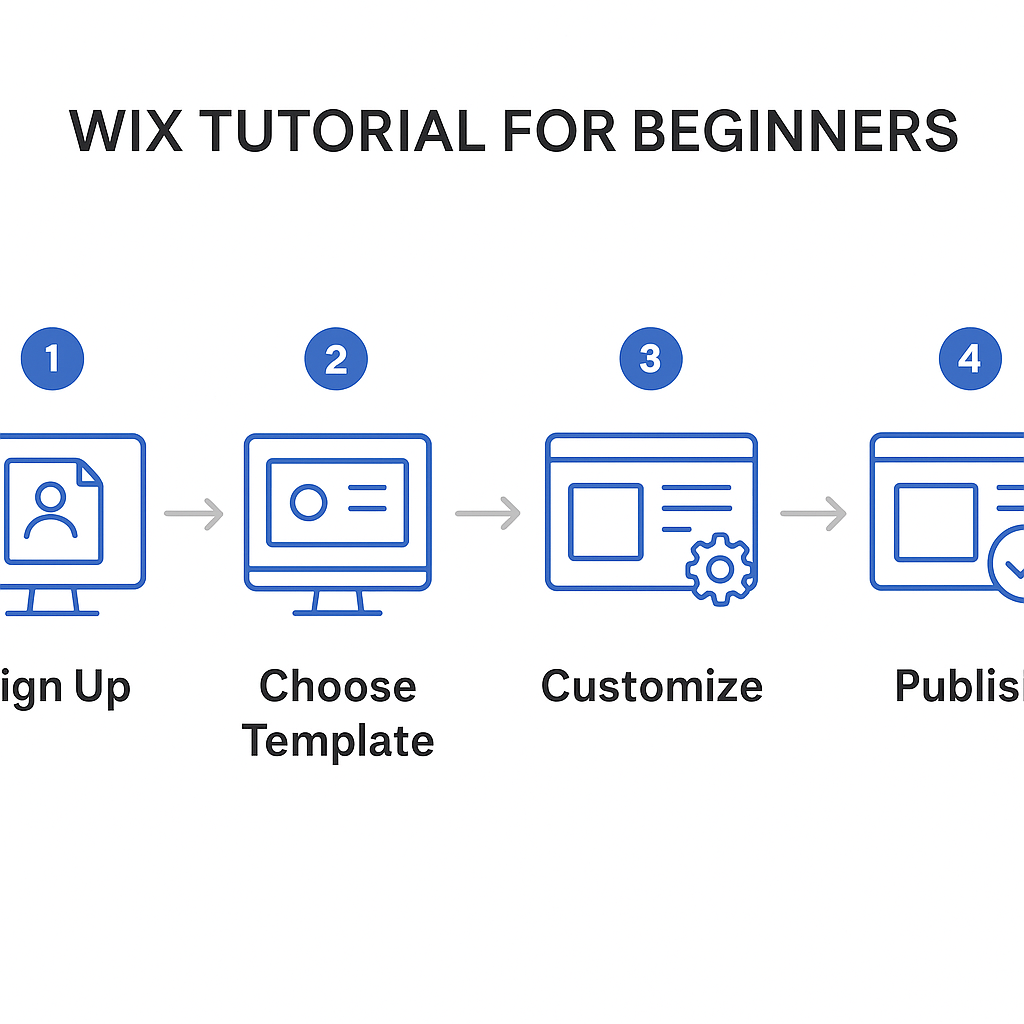
But knowing that Wix exists and actually knowing how to use it are two very different things. Many beginners open the platform, feel immediately overwhelmed by the options, and either give up or end up with a website that doesn’t represent them well. This guide is designed to prevent exactly that. You’ll learn what Wix is and how it actually works under the hood, how to set up your account and choose the right starting point, how to design and customise your site, how to add and manage pages and content, and how to publish your website to the world. By the end of this article, you’ll have a clear, confident path forward — whether you’re building a portfolio, a small business site, an online store, or a personal blog.
—
What Is Wix and How Does It Work?
Wix is a drag-and-drop website builder hosted entirely in the cloud. Think of it like Google Docs, but instead of writing documents, you’re building web pages visually. You see your website as it will look to visitors, and you edit it directly by clicking on elements, moving them around, and customising their appearance — all in real time.
Here’s a useful analogy: imagine building a house using LEGO blocks. Each block — a text box, an image, a button, a contact form — is a pre-made piece you can place wherever you like on your page. You don’t need to manufacture the bricks yourself (that would be coding from scratch). You just pick the right ones and arrange them. Wix gives you hundreds of these pre-made building blocks and thousands of layout templates to start from.
Under the hood, Wix handles everything that would otherwise require technical expertise: web hosting, security certificates (SSL), mobile optimisation, and even some basic SEO setup. When you create a Wix site, Wix stores all your site files on its own servers and delivers your website to visitors through those servers. You never need to “install” your site anywhere or purchase separate hosting.
Here’s a real-world example: imagine Sarah, a freelance photographer. She wants to show potential clients her portfolio but has no technical background. With Wix, she can sign up for a free account, choose a photography template, replace the placeholder images with her own, update the text with her name and contact details, and have a live website up within an afternoon — without touching any code.
This accessibility is exactly why Wix has grown to power over 200 million websites globally across virtually every type of use case.
—
Setting Up Your Wix Account and Choosing a Template
The very first step in your Wix journey is creating an account. Go to Wix.com, click “Get Started”, and register with your email address or a Google/Facebook login. The process takes under two minutes.
Once inside, Wix will ask you a fundamental question: do you want help from Wix ADI (Artificial Design Intelligence) or do you want to use the Wix Editor yourself? Here’s what that means in plain terms:
- Wix ADI asks you a few questions about your website’s purpose (e.g., restaurant, portfolio, blog), your style preferences, and your business name. It then automatically generates a complete website for you in seconds. This is great if you want a fast starting point.
- Wix Editor gives you full manual control. You choose a template from over 900 professionally designed options, then customise every element yourself. This is the better choice if you have a clear vision or want to learn the platform in depth.
For beginners who want to genuinely understand how Wix works, the Wix Editor route is recommended. Let’s say you’re opening a café called “The Corner Cup.” You’d search templates by the “Restaurant & Food” category, browse options, click “Edit” on one you like, and you’re in.
Choosing the right template matters. Don’t just pick the prettiest one — consider the structure. A template built for a restaurant will already have sections for a menu, location map, and reservation button. Those built-in structural choices will save you enormous time. You can always change colours, fonts, and images, but rearranging entire page layouts takes more effort.
Once you’ve selected a template, you land in the Wix Editor — the central workspace where all the real building happens.
—
Designing and Customising Your Website in the Wix Editor
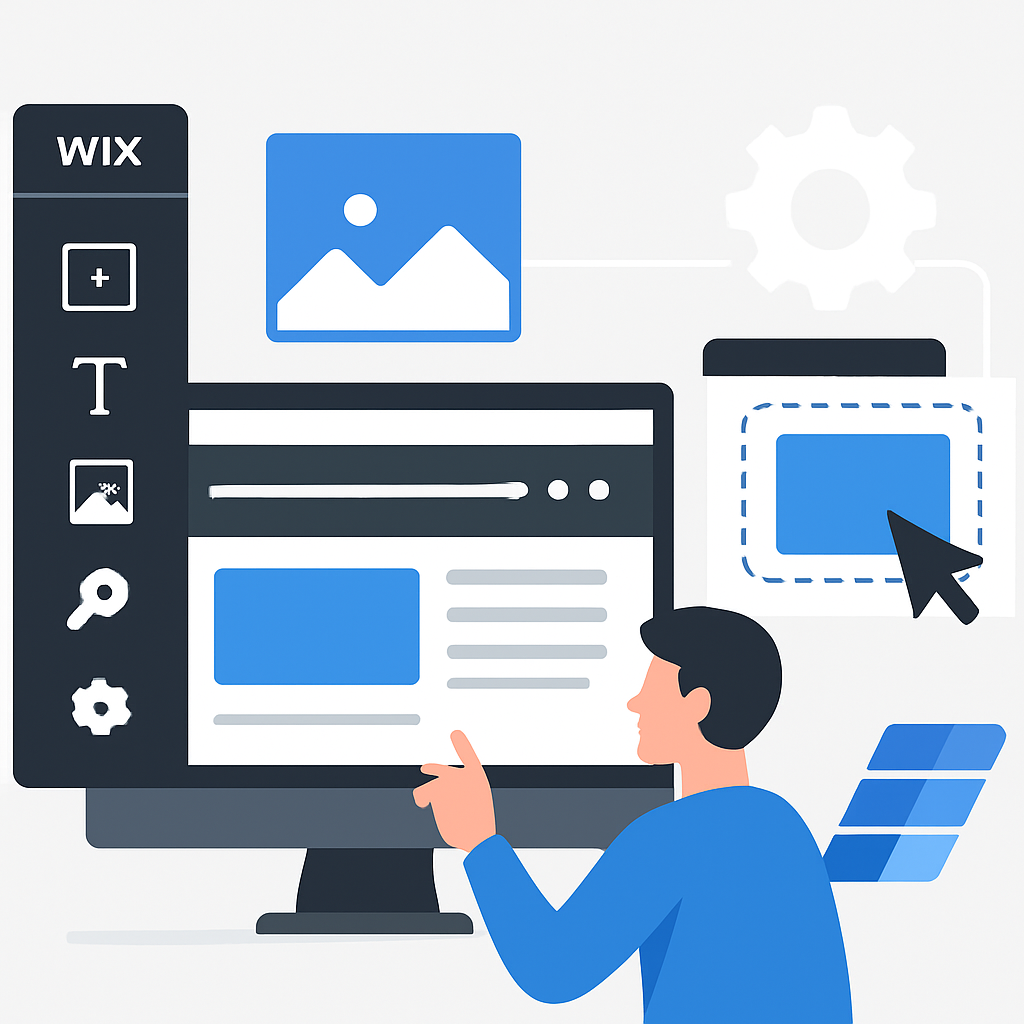
The Wix Editor is where beginners often feel their first wave of anxiety. There are menus on the left, a toolbar across the top, and a canvas in the middle showing your website. Breathe — it’s more intuitive than it looks.
The canvas is your website. Everything you see there is exactly what visitors will see. Click on any element — a heading, an image, a button — and a small toolbar appears directly above it with editing options. Want to change the text? Double-click it and type. Want to change a photo? Click the image, select “Change Image”, and upload your own from your computer or choose from Wix’s free stock library.
The left-side panel is your main toolkit. Here’s what each menu item does:
- Add Elements (+): This is where you drag new items onto your page — text boxes, images, videos, forms, maps, buttons, and more.
- Pages: This shows all the pages on your site (Home, About, Contact, etc.) and lets you add new ones.
- Design: Controls site-wide design settings like fonts and colour palettes.
- App Market: Where you install add-on features like online booking systems, chat widgets, or event calendars.
Let’s use a real example. Suppose you’re building a personal coaching website. On your Home page, you want a large hero image with your name and a call-to-action button that says “Book a Free Call.” You’d click on the existing hero image, replace it with a professional photo of yourself, double-click the heading text to write your name and tagline, then click the button to change its text and link it to your Contact page. That entire process takes about ten minutes once you know where to click.
Colours and fonts are two of the most important brand elements on any website. In Wix, you can set a consistent colour palette through the Design settings. Choose two or three colours that represent your brand and apply them throughout. Consistency is what separates amateur-looking sites from professional ones.
—
Adding Pages, Navigation, and Key Website Content
Most websites need more than one page. A typical beginner website might have five pages: Home, About, Services (or Portfolio), Blog, and Contact. In the Wix Editor, you manage all of this through the Pages menu on the left panel.
To add a new page, click “Pages”, then “Add Page”. You can start from a blank page or choose from pre-designed page layouts. For a Contact page, Wix offers templates that already include a contact form, a map, and your business address — you just fill in your specific details.
Navigation is handled automatically through your site’s menu. When you add a new page, Wix gives you the option to add it to the navigation menu. You can reorder pages in the menu by dragging them, rename them, or hide certain pages from the menu entirely (useful for a “Thank You” page after someone fills out a form).
Here’s an important beginner tip: every website needs a clear Contact page. Even if visitors love your site, if they can’t easily find how to reach you, you’ll lose them. A good Contact page has a form (name, email, message), your email address written out, and ideally your location or phone number if relevant.
The Blog feature is worth mentioning separately. If you plan to publish articles or updates, Wix has a built-in blog tool. You activate it through the App Market, and it adds a Blog page to your site with a fully functional post editor. You can write posts, add categories, schedule publishing dates, and allow reader comments.
For an online store, Wix has a dedicated Wix Stores app (also added through the App Market) that handles product listings, shopping carts, and payment processing. It’s a full e-commerce solution built right into the same editor.
—
Publishing Your Wix Website and Understanding Domain Names
Once your site looks the way you want it, it’s time to go live. In the Wix Editor, click the “Publish” button in the top-right corner. Wix will ask you to confirm, and within moments, your site is live on the internet.
But what address (URL) will it have? This is where domain names come in. By default, Wix gives your site a free subdomain address that looks like this: username.wixsite.com/your-site-name. This works perfectly fine for testing or personal use, but for a professional or business website, you’ll want a custom domain like www.thecornercup.com.
You can connect a custom domain through Wix in two ways:
- Purchase a domain directly through Wix: Wix sells domain names and handles all the technical setup automatically.
- Connect an existing domain you own: If you’ve already bought a domain from a registrar like GoDaddy or Namecheap, you can connect it to your Wix site by updating your domain’s DNS settings — Wix provides clear step-by-step instructions for this.
Domain names typically cost between $10–$20 per year. Having a custom domain significantly increases how professional and trustworthy your site appears to visitors.
Before publishing, always use Wix’s mobile editor to check how your site looks on a smartphone. You access this by clicking the mobile icon at the top of the editor. Because Wix gives you freeform placement of elements, mobile layout sometimes needs manual adjustment — text that looks perfect on desktop may overlap on a phone screen. Fix these issues before going live.
Also check your SEO Basics: in Wix, go to Settings > SEO to set your site’s page title and meta description — these are the text snippets that appear in Google search results. For each page, click on the three-dot menu in the Pages panel, select “SEO (Google)”, and write a clear, descriptive title and description. This won’t make you rank overnight, but it’s an essential foundation.
—
Benefits and Limitations of Using Wix as a Beginner
Understanding where Wix genuinely shines and where it falls short will help you make better decisions as you build.
Benefits
- No coding required: You can build a complete, functional website entirely through visual tools. This removes the single biggest barrier most beginners face.
- Hundreds of templates: Wix offers over 900 professionally designed templates across dozens of categories, giving you a strong visual starting point for almost any type of site.
- All-in-one platform: Hosting, security (SSL certificate), a domain option, and basic SEO tools are all included or easily accessible in one place — you don’t need to manage multiple services.
- Flexible free plan: Wix offers a genuinely functional free tier. You can build and publish a site without spending any money, which is ideal for learning or low-budget projects.
- App Market: The built-in app ecosystem lets you add complex functionality — booking systems, live chat, event management, memberships — without needing to hire a developer.
- Regular updates: Wix continuously improves its platform, adding features and fixing issues, and those improvements apply to your site automatically.
Limitations
- You can’t switch templates easily: Once you’ve built your site on a chosen template, switching to a different template means starting over. This is a significant constraint if you change your mind about the design direction later.
- Free plan includes Wix branding: On the free plan, your site displays a Wix advertisement banner and uses the Wix subdomain. For professional purposes, upgrading to a paid plan is effectively necessary.
- Performance can vary: Because Wix generates pages dynamically and gives users a lot of design freedom, Wix sites can sometimes load more slowly than sites built on more streamlined platforms — though Wix has improved significantly in this area.
- Less scalability for large sites: Wix is excellent for small to medium-sized websites. Very large websites with hundreds of pages, complex databases, or highly custom functionality may eventually outgrow what Wix can offer.
- Limited backend control: Unlike self-hosted platforms, you can’t access the underlying server files or install arbitrary code. Advanced developers who want full control will find Wix restrictive.
—
Frequently Asked Questions
Is Wix really free to use?
Yes, Wix has a free plan that lets you create and publish a website without paying anything. However, the free plan has notable limitations: your site will display a Wix-branded banner at the top, and your web address will be the Wix subdomain format (username.wixsite.com/yoursite) rather than a custom domain. For a personal project, student portfolio, or while you’re learning, the free plan is entirely adequate. For a business or professional site, most users upgrade to one of Wix’s paid plans, which removes the branding, connects a custom domain, and increases storage and bandwidth. Paid plans start at relatively low monthly costs and scale up with added features like e-commerce functionality.
How long does it take to build a website on Wix?
This varies enormously depending on how complex your site is and how clear your vision is. A simple five-page website — Home, About, Services, Blog, Contact — can realistically be built in a single day, even for a complete beginner. The template gives you the structural foundation, so most of your time is spent replacing placeholder content with your own text, images, and information. Adding complex features like an online store, booking system, or membership area will naturally take longer. Many beginners report having their first site live within a weekend. The key is not to aim for perfection immediately — publish a functional version, then improve it over time.
Can I use Wix for an online store?
Yes, absolutely. Wix has a full e-commerce solution called Wix Stores, which you add to your site through the App Market at no extra setup cost (though you’ll need a Business or e-commerce-tier paid plan to actually accept payments). Wix Stores lets you create product listings with images, prices, variants (like size and colour), inventory tracking, and multiple payment options including credit cards and PayPal. You can also manage orders, send shipping updates, and apply discount codes. For small to mid-sized online shops, Wix Stores is a completely viable solution. Very large stores with thousands of SKUs or highly complex fulfilment needs might eventually need a more dedicated platform, but for most beginners starting an online business, Wix handles it well.
What happens to my site if I downgrade or cancel my Wix plan?
If you’re on a paid plan and cancel or downgrade to the free plan, your website doesn’t disappear — it continues to exist in your Wix account. However, your custom domain connection will be severed, and your site will revert to the Wix subdomain. Wix-branded banners will reappear on your published site. You don’t lose any of your content or design work; it’s all still there in the editor. If you cancel entirely and delete your account, your site data would be removed, but simply downgrading to the free tier is reversible. This is worth knowing upfront so you can make decisions about plans without worrying about losing your hard work.
Is Wix good for SEO (being found on Google)?
Wix has improved its SEO capabilities substantially in recent years. It now supports all the fundamental SEO elements: custom page titles, meta descriptions, URL slugs, image alt text, canonical tags, and automatic sitemap generation. Wix also offers a guided SEO setup tool called “SEO Wiz” that walks beginners through the most important steps. That said, SEO results depend far more on the quality of your content, the relevance of your keywords, and the number of credible websites linking to yours than on the platform itself. Wix is not a handicap to SEO — sites built on Wix rank on the first page of Google regularly. The key is understanding that no website builder makes SEO happen automatically; it requires consistent effort with content and strategy over time.
Can I use my own images and content on Wix?
Yes, and you absolutely should. While Wix provides access to a free stock image library (sourced from Unsplash and other providers), using your own authentic photos and writing your own original content is strongly recommended for both SEO and building genuine connection with your audience. You can upload images directly from your computer through the Wix Media Manager. Wix accepts common image formats (JPG, PNG, GIF, WebP) and also supports video uploads. One practical tip: optimise your images before uploading by compressing them to reduce file size. Large image files slow down page loading, which affects both user experience and SEO. Free tools like Squoosh or TinyPNG can compress images significantly without visible quality loss.
—
Conclusion
Building a website no longer requires technical expertise, and Wix makes that more true than almost any other platform available today. Through this guide, you’ve learned what Wix is and how it works as a cloud-based drag-and-drop builder, how to set up your account and choose a template that suits your purpose, how to customise your design using the Wix Editor, how to add pages and content that serve your visitors, and how to publish your site with a professional domain name.
The most important thing to remember as a beginner is this: start before you feel ready. Every experienced Wix user began exactly where you are now — uncertain, curious, and learning by doing. Your first website won’t be perfect, and that’s completely fine. Build something, publish it, and improve it as you go. Wix makes iteration easy — you can update your site at any time and republish with a single click.
Focus first on clarity: clear navigation, clear purpose, and clear ways for visitors to contact you or take action. Everything else — animations, complex features, design polish — can come later. A simple, honest website that communicates well will always outperform an elaborate one that confuses visitors.
You have everything you need to get started. Open Wix, create your account, and build something you’re proud to share with the world.