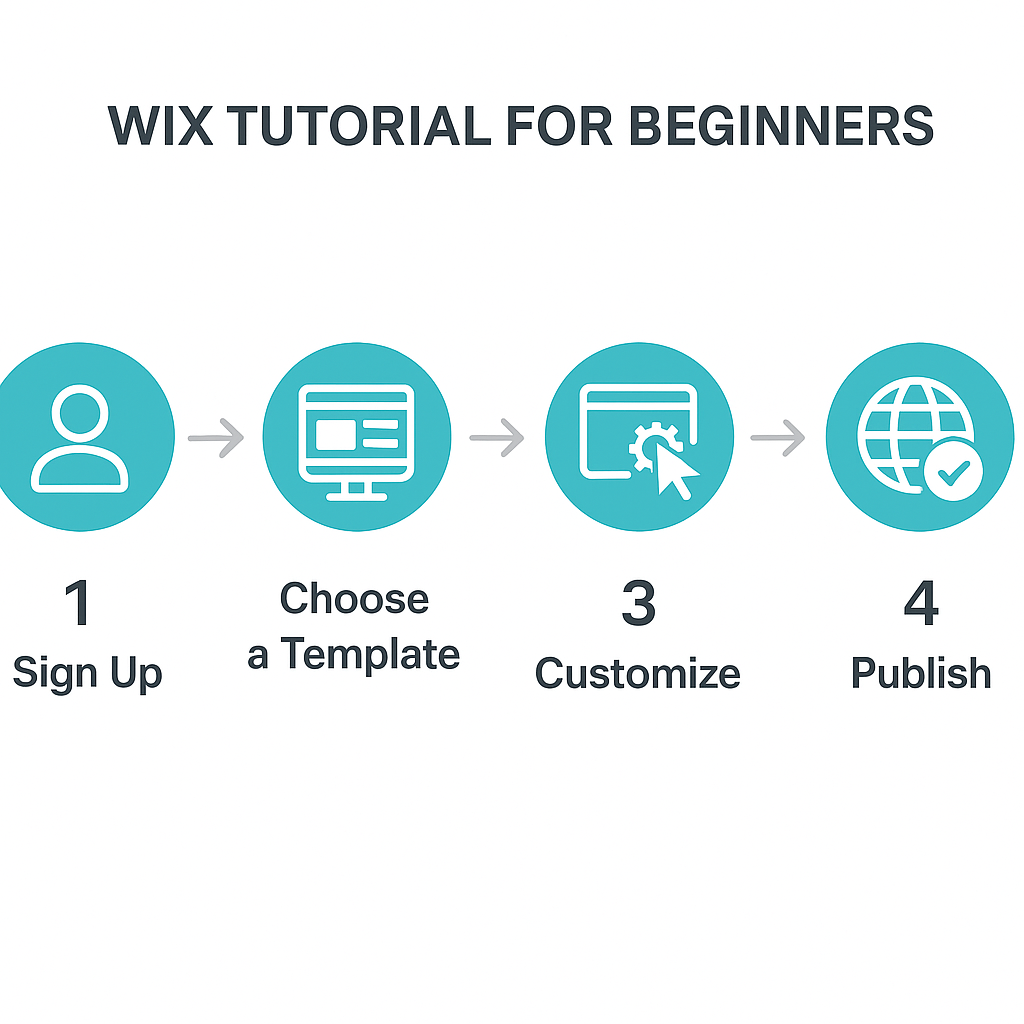
Wix Tutorial for Beginners
If you’ve been searching for a wix tutorial for beginners, you’re in the right place. Wix is one of the most widely used website-building platforms in the world, and for good reason — it allows people with no coding knowledge to create professional-looking websites from scratch. Whether you’re a freelance photographer wanting to display your portfolio, a small business owner who needs an online presence, or a hobbyist looking to share a blog, Wix gives you the tools to make it happen without needing to hire a developer.
What makes this platform particularly valuable for beginners is its drag-and-drop interface. Instead of writing HTML or CSS, you simply click on elements, drag them where you want them, and type your content directly onto the page. It feels intuitive almost immediately, which is why so many first-time website builders gravitate toward it.
In this guide, you’ll learn what Wix is and how it actually works, how to set up your first website, how to design and customise your pages, how to manage your site’s structure and navigation, and how to understand the platform’s strengths and limitations. By the end, you’ll have a clear roadmap for getting your first Wix site live — no technical background required.
—
What Is Wix and How Does It Work?
Wix is a cloud-based website builder, which means your website is hosted on Wix’s servers and you build it entirely through a web browser — no software downloads, no server configurations, no complicated setup. Think of it like Google Docs, but instead of writing documents, you’re building web pages. Everything happens in your browser, and your work is saved automatically.
The platform operates on what’s called a WYSIWYG editor — short for “What You See Is What You Get.” This means the editing view looks almost identical to what your visitors will see when they visit your site. If you move an image to the right side of the screen in the editor, it will appear on the right side for your visitors too. This removes a huge barrier that traditional web development creates: the gap between writing code and seeing the result.
Here’s a real-world analogy: imagine designing a flyer using a physical cork board, sticky notes, and printouts. You pin things up, move them around, swap them out — and what’s on the board is exactly what gets printed. Wix works the same way, but digitally.
When you sign up for Wix, you’re given two main paths to start building. The first is the classic Wix Editor, where you choose a template and manually customise every element. The second is Wix ADI (Artificial Design Intelligence), which asks you a series of questions about your website’s purpose and then automatically generates a complete site design for you to refine. Both approaches are legitimate — ADI is faster, while the classic editor gives you more creative control.
Wix uses a free tier that includes hosting and a Wix-branded subdomain (for example, yourusername.wixsite.com/yoursite). Paid plans allow you to connect a custom domain name and remove Wix branding. For a beginner just learning the ropes, the free plan is an excellent place to start.
—
Setting Up Your Wix Account and Starting Your First Site
Getting started with Wix is straightforward, and understanding the initial setup process will save you time and frustration later.
First, go to wix.com and click “Get Started.” You’ll be prompted to create an account using your email address or by logging in with Google or Facebook. Once your account is created, Wix will ask you what kind of website you want to build — options include portfolio, blog, business, online store, restaurant, and more. This isn’t locked in permanently, but it helps Wix suggest relevant templates and features from the start.
Let’s say you’re creating a portfolio site as a graphic designer. After selecting “Portfolio & CV” as your category, Wix will ask whether you want to use the ADI system or open the Wix Editor. If you choose ADI, you’ll answer a few more questions about your style preferences and the information you want to include, and within a minute or two, Wix generates a complete multi-page site tailored to a graphic designer’s needs.
If you choose the Wix Editor instead, you’ll be taken to a template gallery. Templates are pre-designed website layouts that you can customise. As of now, Wix offers over 900 templates across dozens of categories. For a graphic designer, you might pick a template called “Creative Portfolio” — it comes pre-loaded with placeholder images, a gallery section, an about page, and a contact form. You simply replace the placeholder content with your own.
Once you’ve selected a template and entered the editor, take a few minutes to explore before making changes. Click on different elements — a heading, an image, a button — and notice the contextual menu that appears. Every element has its own settings panel. You can change font size, colour, position, and more by interacting directly with the element rather than searching through menus.
One important early decision: before you start designing, define the pages you need. Most basic websites need at least a Home page, an About page, and a Contact page. Plan these out mentally before customising, so your structural decisions guide your design rather than the other way around.
—
Designing and Customising Your Pages
The design phase is where most beginners spend the majority of their time, and it’s also where Wix’s flexibility becomes most apparent.
Every element on a Wix page — text boxes, images, buttons, video players, maps, galleries, forms — can be clicked, moved, resized, and restyled independently. This freedom is one of Wix’s defining characteristics, but it also requires some discipline. Because you can technically place anything anywhere, beginners sometimes create cluttered, inconsistent layouts. The key is to establish a visual hierarchy: the most important information should be largest and most prominent, with supporting content scaled down accordingly.
Consider a real example. Imagine you’re building a page for a local bakery. Your Home page might feature a large hero image of freshly baked goods at the top, followed by a short welcoming headline, then a row of three images representing your most popular product categories (breads, pastries, cakes), and finally a “Contact Us” button. This structure — hero, headline, categories, call to action — follows a logical reading flow and guides visitors through the page naturally.
To add a new element in the Wix Editor, click the blue “+” button (called the Add Panel) on the left sidebar. From there, you can browse and add text, images, buttons, shapes, interactive widgets, and much more. Wix also has a built-in media library where you can upload your own photos, or you can use free stock images from the platform’s library, which pulls from Unsplash and Shutterstock.
One powerful design tool is the “Wix Site Styles” panel (available in the newer Wix Editor X and the updated editor). This lets you set global fonts and colours for your entire site in one place, so every page maintains a consistent visual identity. For the bakery example, you might set your brand’s warm brown as the primary colour and a clean sans-serif font as the default text style — and these settings apply automatically across every page.
Don’t overlook mobile design. Wix has a separate mobile editor that lets you adjust how your site looks on smartphones. The desktop and mobile layouts are somewhat independent, so an image you position perfectly on desktop might appear differently on mobile. Always check your mobile view before publishing.
—
Managing Navigation, Pages, and Site Structure
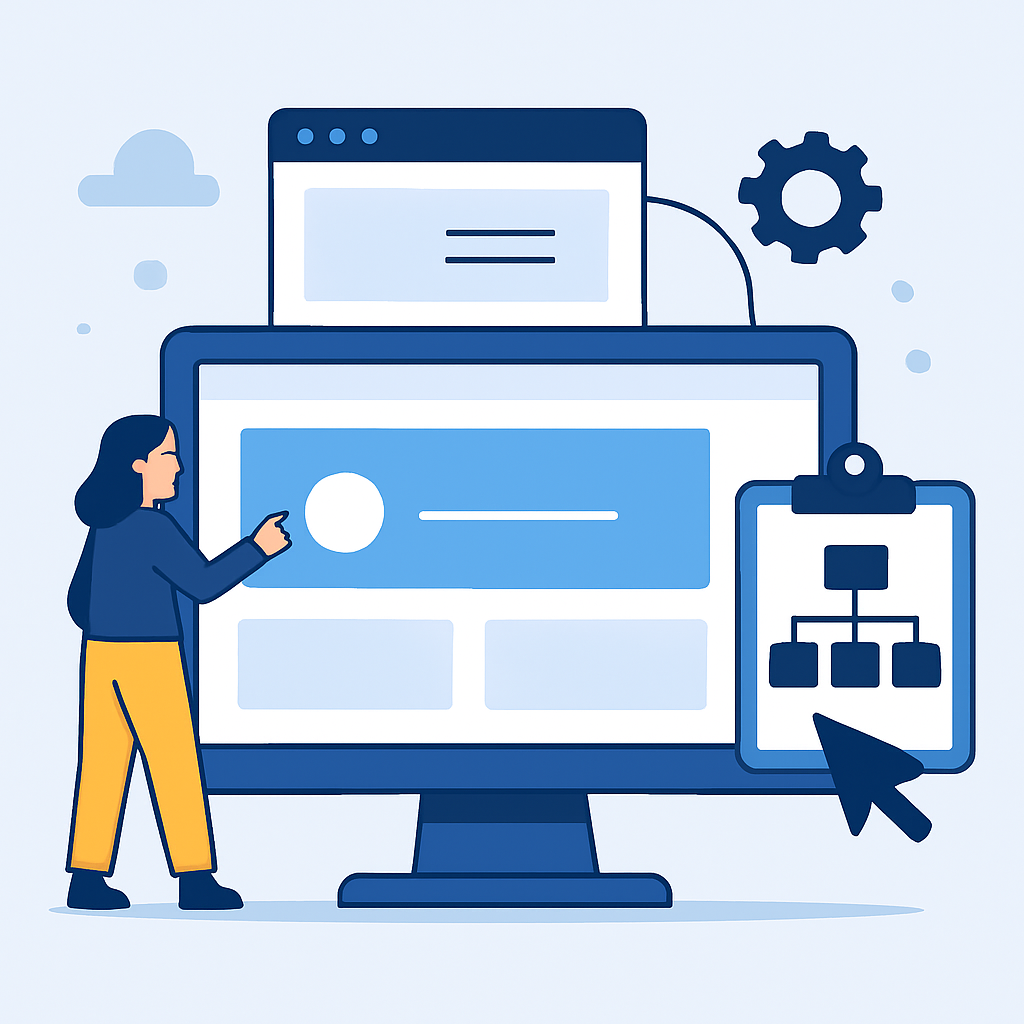
A beautiful design means little if visitors can’t find their way around your site. Understanding how to manage pages and navigation in Wix is a critical skill for beginners.
In the Wix Editor, your site’s pages are managed through the “Pages & Menu” section, accessible from the left sidebar. Here you can add new pages, rename existing ones, reorder them, and control which pages appear in your navigation menu.
Let’s say you’re building a website for a yoga instructor. You might start with five pages: Home, About, Classes, Schedule, and Contact. In the Pages & Menu panel, you can drag these pages into whatever order makes the most sense for your visitors — typically Home first, Contact last. You can also nest pages under others to create drop-down menus. For example, you might create a “Services” page with sub-pages like “Private Sessions” and “Group Classes” nested beneath it.
Wix automatically generates a navigation menu (called a header menu) from your pages list. You can customise how this menu looks by clicking on it in the editor — changing its font, colour, layout style (horizontal, vertical, hamburger menu for mobile), and position on the page. The header and footer are particularly important because they appear on every page of your site. A well-designed header with clear navigation links makes your entire site feel more professional and easier to use.
Another important structural element is the Footer. Use it to include contact information, social media links, and secondary navigation links like “Privacy Policy” or “Terms of Use.” Many first-time site builders ignore the footer, but visitors often scroll directly to it when looking for contact details or business hours.
Wix also allows you to create pages that are hidden from the main menu — useful for thank-you pages after form submissions, or landing pages you link to from specific campaigns. These are called “Hidden Pages” in the page settings.
If you’re building an online store or a membership site, Wix offers dedicated apps through its App Market to handle those functions. For most beginner websites, however, the standard page and navigation tools are more than sufficient.
—
Benefits and Limitations of Using Wix
Understanding both what Wix does well and where it falls short will help you make informed decisions as you build your site.
Benefits
- No technical knowledge required. Wix is genuinely accessible to people who have never built a website before. The drag-and-drop editor and visual feedback make it easy to learn by doing, which is rare in web development tools.
- Hundreds of templates to start from. Rather than designing from a blank page, you begin with a professionally designed layout. This dramatically reduces the time and creative effort needed to produce a good-looking result.
- Built-in hosting and security. Because Wix manages your hosting, you don’t need to worry about server maintenance, software updates, or SSL certificates. These are handled automatically, which is a significant relief for non-technical users.
- The Wix App Market extends functionality. If you need a booking system, live chat, event registration, or an email marketing tool, there’s likely an app in the Wix App Market that handles it — many are free or low-cost. This lets your site grow in complexity without requiring you to rebuild it on a different platform.
- Fast setup. Using the ADI system, you can have a reasonably polished website ready in under 30 minutes. Even using the manual editor, a basic five-page site can be completed in a few hours.
Limitations
- Templates cannot be switched after you start building. If you’ve spent hours customising a template and then decide you prefer a different one, you’ll need to start over. This is one of Wix’s most commonly cited frustrations. Choose your template carefully from the beginning.
- Free plan includes Wix branding and a subdomain. The free tier displays Wix ads on your site and doesn’t allow a custom domain. For a personal project this may be fine, but for a professional or business site, it looks unprofessional without upgrading to a paid plan.
- SEO has limitations compared to other platforms. While Wix has improved its SEO tools significantly in recent years, platforms like WordPress still offer more granular control over technical SEO. For most small businesses and personal sites, Wix’s SEO capabilities are adequate — but if organic search traffic is central to your strategy, it’s worth understanding this constraint.
- Site portability is limited. If you ever want to migrate your Wix site to another platform, there’s no easy export option. Your content doesn’t transfer neatly to WordPress or another builder, meaning migration is largely a manual process.
—
Frequently Asked Questions
Do I need any design or coding experience to use Wix?
No — Wix was built specifically for people without design or coding backgrounds. The drag-and-drop editor handles all the technical formatting for you. That said, having a basic sense of visual layout (like keeping text readable and avoiding cluttered pages) will help you produce better results. There are also many free tutorials on the Wix support site if you want guidance on specific tasks.
Can I use Wix for free, or do I need to pay?
Wix does offer a free plan, which gives you access to the editor, hosting, and most core features. However, the free plan includes Wix advertisements displayed on your site and uses a Wix subdomain rather than a custom URL. If you want a professional domain (like www.yourbusiness.com) and to remove Wix branding, you’ll need to upgrade to a paid plan. For learning purposes or personal projects where professionalism isn’t critical, the free tier works well.
How long does it take to build a basic website on Wix?
A simple three-to-five-page website — such as a home page, about page, and contact page — can realistically be built in two to four hours if you have your content (text and images) ready beforehand. If you’re still gathering your copy, photos, and structure as you build, expect it to take longer. Using Wix ADI can produce a starting framework in under 10 minutes, which you then refine over the following hours.
How do I make my Wix website show up on Google?
Wix includes built-in SEO tools found under the “Marketing & SEO” section in your dashboard. You can add a page title, meta description, and alt text for images — all of which help search engines understand and index your content. You should also connect your site to Google Search Console, which is a free Google tool that monitors how your site appears in search results. Keep in mind that new websites generally take several weeks to several months to start appearing prominently in search results, regardless of the platform you use.
Can I sell products through a Wix website?
Yes. Wix has a built-in e-commerce feature called Wix Stores, which you can add to your site through the Add Panel or the App Market. It allows you to list products, manage inventory, accept payments via credit card and PayPal, and handle basic order management. For small-scale online selling — say, a boutique selling handmade jewellery or a photographer selling digital prints — Wix Stores is functional and reasonably straightforward to set up. For large catalogues or complex e-commerce operations, more specialised platforms may be worth exploring.
What happens to my website if I stop paying for a Wix plan?
If your subscription lapses, your site reverts to the free plan. This means Wix branding and ads will reappear on your site, and if you had connected a custom domain through Wix, that connection may be disrupted depending on how the domain was registered. Your site content and settings are not deleted — you can still log in and access your editor. It’s a good practice to keep your domain registration current regardless of your Wix subscription status.
—
Conclusion
Building your first website can feel overwhelming, but Wix genuinely lowers the barrier to entry as much as any platform available today. Throughout this guide, you’ve seen how Wix works as a visual drag-and-drop builder, how to set up your account and choose a starting point, how to design and customise your pages effectively, and how to structure your site so visitors can navigate it easily. You’ve also seen a balanced view of where Wix excels and where it has real constraints.
The best next step is to simply open a free Wix account and start experimenting. Choose a template that roughly matches your purpose, replace the placeholder text and images with your own, and explore the editor without fear of breaking anything — you can always undo changes or revert to a saved version. Learning by doing is the fastest path forward with Wix.
Keep your design clean and your navigation simple, especially in the beginning. A straightforward, well-organised site will always serve your audience better than a complex one that confuses or overwhelms. With patience and a bit of creative exploration, you’ll be publishing your first website sooner than you expect.